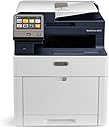
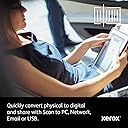
🚀 Elevate your office game with Xerox’s smart, sleek, and seriously sharp WorkCentre 6515/DNI!
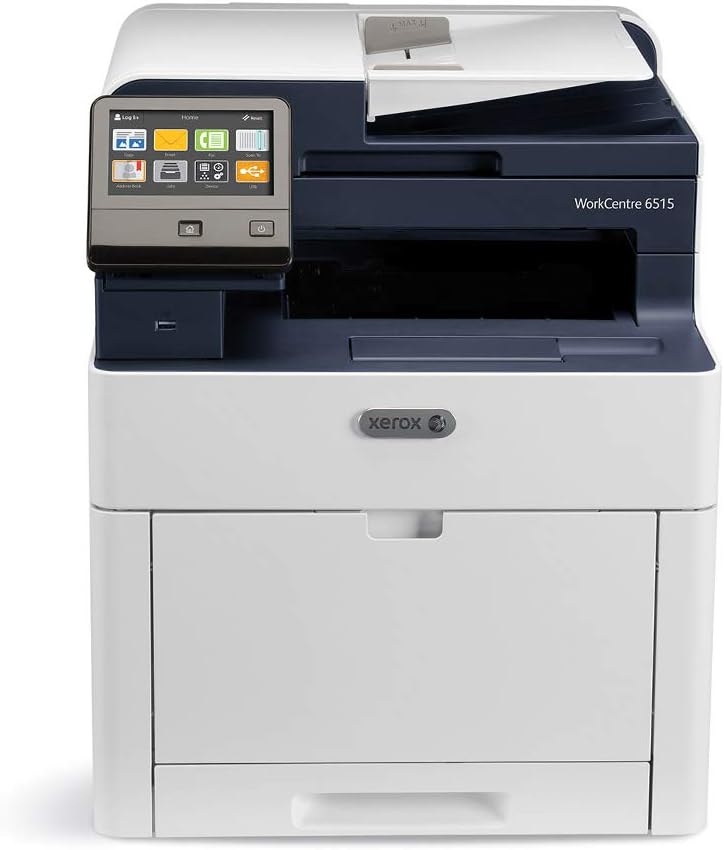
The Xerox WorkCentre 6515/DNI is a versatile color laser multifunction printer designed for small to medium workgroups. It features cloud connectivity, a responsive color touchscreen with multitouch gestures, and high-resolution printing up to 1200 x 2400 dpi. Supporting both wireless and USB connections, it offers flexible integration with PCs, Macs, and mobile devices. With a 1.05 GHz processor and 2 GB memory, it balances speed and quality, backed by Xerox’s standard one-year warranty and embedded web management for easy remote control.
| ASIN | B01MFHBDGI |
| Additional Printer Functions | All In One |
| B&W Pages per Minute | 40 ppm |
| Best Sellers Rank | #582,031 in Office Products ( See Top 100 in Office Products ) #783 in Laser Computer Printers |
| Brand | Xerox |
| Built-In Media | Phaser 6515 color multifunction printer, Power Cord, Standard Capacity print cartridge: one of each(cyan, yellow, magenta, black), fax cord, installation guide, quick use guides, software and documentation CD(with user manual, quick install guide, safety regulatory, recycling and disposal guides, print drivers, and warranty statement) |
| Color | White/Blue |
| Color Depth | 24 bits_per_pixel |
| Color Pages per Minute | 35 |
| Compatible Devices | Laptops, PC |
| Connectivity Technology | Wi-Fi |
| Control Method | App |
| Controller Type | Android, iOS |
| Customer Reviews | 3.9 out of 5 stars 617 Reviews |
| Display Type | LCD |
| Dual-sided printing | Yes |
| Duplex | Yes |
| EU Spare Part Availability Duration | 1 Years |
| Global Trade Identification Number | 00095205839760 |
| Hardware Interface | USB |
| Initial Page Print Time | 3-4 seconds |
| Ink Color | Color |
| Item Dimensions D x W x H | 19.9"D x 16.5"W x 19.7"H |
| Item Type Name | Xerox WorkCentre 6515DN Color Laser MFP 6515/DNI |
| Item Weight | 36200 Grams |
| Manufacturer | Xerox Office Products |
| Maximum Copy Resolution Black and White | 28 dpi or higher |
| Maximum Copy Resolution Color | 28 dpi or higher |
| Maximum Copy Speed Black and White | 9 ppm |
| Maximum Media Size | 8.5 x 14 inch |
| Maximum Print Resolution Black and White | 28 dpi or higher |
| Maximum Sheet Capacity | 250 |
| Maximum print Resolution Color | 1200 x 2400 dpi |
| Model Name | WorkCentre 6515 |
| Model Number | 6515_DNI |
| Model Series | 65 |
| Number of Drivers | 2 |
| Number of Trays | 2 |
| Other Special Features of the Product | Wireless |
| Paper Size | 8.5 inch x 14 Inches |
| Print media | Envelopes, Paper (plain) |
| Printer Connectivity Type | Wi-Fi |
| Printer Output Type | Color |
| Printer Type | Laser |
| Printing Technology | Laser |
| Processor Count | 1 |
| Resolution | 28 dpi or higher |
| Scanner Type | document |
| Series Number | 65 |
| Special Feature | Wireless |
| Specific Uses For Product | Office environments, team collaboration, general-purpose printing, scanning, and faxing tasks in a small to medium-sized workgroup setting |
| Total USB 2.0 Ports | 1 |
| Total Usb Ports | 1 |
| UPC | 095205839760 |
| Unit Count | 1.0 Count |
| Warranty Description | One year on-site |
| Warranty Type | Limited Warranty |
H**.
Good printer if you use downloaded drivers and ignore one came with the CD
I only print a few pages each month at home and always had a low cost inkjet printer available for the task. However, the need to change from ink to laser is obvious for the reasons: 1. Ink cartridges are costly. This is not an issue until ink dries a couple of months after installation. lightly used dry cartridges really made the ink cost high. Laser cartridge can last forever. 2. Low cost home inkjets only support WiFi or cable connection, one way or the other, but not both. This means I cannot print from computer when I use Air Print, or vice versa. I use many printers at work including Xerox Phaser solid ink printer and I was so impressed with its print color quality. I decided to buy a Xerox laser printer to replace my third inkjet. I was concerned about the connection problems as pointed out in the reviews here, but I decided to give it a try and just thinking what if every review was wrong about it. I am glad that I was right. The printer is low cost to maintain and worked perfectly. All I did was to ignore the CD that came with the printer. I went to Xerox web site and downloaded the latest version of printer driver. I used PCL version. The driver comes in a compressed file and needs to be expanded in Download folder in Windows. I connected the 6515/DNI printer to the router and obtained an IP address for it. Then use the PC connected via Wifi to configure the printer. Just let Windows to find a New Printer. I have two PC's, both running Win 10, that behaved differently. One found the 6515 and the other did not. For the PC that failed to find 6515, I entered its IP address to allow the PC to find it and installed the driver from the uncompressed folder in Download. The PC can print and scan with 6515, no issue at all. For the PC that found 6515, probably used some default printer driver from Win 10. It did not work well. Each print job failed to wake up 6515, which remains sleep until I manually wakes it up by pressing the power button on the LCD panel. This manual wake-up procedure does not work every time. When that happened, I had to power cycle 6515 to bring it back to work. I deleted 6515 from the printer list and manually reinstall using IP address and latest driver to fix the problem. I image I could also go to the printer Property and update its driver by pointing the new driver folder to fix the problem. For MAC users, life is much easier. I let my MBP 2018 to find the printer, there is no need to download driver, everything just worked. We have a few iPads and iPhones around the house, they all work great using Air Print. My experience found that Xerox printers are better integrated with Apple computers. Wonderful thing is that 6515 can work with PC and MAC connected via cable and Wifi, as well as mobile devices via Air Print. Only one printer is needed for the entire home. If you need a low cost laser printer that does not waste ink money and output good quality of color prints, don't be intimidated by other negative reviews. Downloading and updating drivers is a simple task for PC users. For MAC users, there is no issue at all.
D**J
I would steer clear of this machine and look elsewhere for your small business needs.
Update 5/13/2018: The printer is now giving an unrecoverable error. Apparently it cannot access the HDD and it's unusable. I get the privilege of calling Xerox, again, and having them come out and fix it, again. This is unacceptable for a printer that is only 8 months old with only 12,000 prints. Once this printer is out of warranty and breaks down, I'm going to take a baseball bat to it and go with another brand. I will never purchase another Xerox printer again. ****** Previous review: 2 of 5 stars I purchased this machine in September and it broke down in March (about 7 months). After contacting Xerox customer support, it took them over a month and a half to fix the problem because the part was on back order. Perhaps the engineers need to go back to the drawing board on this one. On the bright side, the printing quality is fine and fast enough for me. In addition, there are some other problems experienced: 1) The wireless networking functions are spotty, at best. I've spent hours on end trying to figure out what the problem is and it all came back to the Wifi. On a hard wire, this thing is fairly rock solid, but with Wifi, it fails miserably. 2) The Google printing function does not work. Again, I've spent about 8 hours trying to figure this one out, and it just doesn't work. This is one of the biggest reasons why I purchased this printer. The fact that it doesn't work was a huge let down. 3) Setting this thing up is a beast. In addition, trying to set user permissions is a huge pain in the rear end. I still have a hard time understanding how I was actually able to accomplish this task. 4) The duplex print function worked fine at first. This was another big reason why I purchased this machine. Now, the machine jams more often than not. I've only got about 12,000 prints out of this thing and its already failing in this area. 5) One set of genuine standard capacity toner cartridges costs $428. The basic printer costs $349 and the full featured printer costs $449. The cost for toner replacements is outrageous when compared to the cost of the machine. The only reason why I give this machine two stars is because after a month and a half, Xerox finally came through and fixed the darn thing. I get that sometimes parts are on back order, but we took a financial hit using other printers for a month and a half because this thing was down. Overall, I cannot recommend purchasing this until Xerox fixes the many flaws in this machine.
E**N
Most awesome printer I've owned
This is a terrific machine. It's more commercial than I was expecting. I bought it for home use and it's probably a bit overkill for that - but as they work to close out the model inventory, it's a great value. The images are crisp and clean. The double-siding function works very well. It's easy to map the scan function to a share folder on your computer. I did not succeed in setting up scan to email - but this is admittedly one of the most complex operations for an MFP to perform. I have not tried again and need to spend more time with it. It has a "real" paper tray and bypass tray. It seems like it will stand up to use for many years. The toner cartridge being separate from the drum cartridge means that you don't pay to replace both - just toner, and then I suppose eventually the drum cartridges. However, at less than $400 for this printer, it may just be time to replace the printer when the drum cartridges start to run out. Very intuitive user interface. Terrific print quality (and the pages "feel" very pro - no curling). Prints very rapidly and reliably. Also a great copier. It has a fax module that I haven't used, but I'm glad that it's there for the random times when a fax is necessary these days. It was a great investment and it's been a solid addition to my home office over the past two months of use.
F**A
Not for home use--you need to be tech savvy! No, seriously. Not just someone who uses computers.
Straight to the Point: I wanted to get my thoughts down while the setup is still fresh in mind, and hopefully this will help others. To get straight to the point, don't buy this thinking it's for home use and that you can just hook up a USB cable to your PC then start printing and scanning (like every other printer I've seen). This is meant to be in an office environment (i.e., you print from a computer not attached to the printer, you scan to a computer not attached to a printer, you send copies via email through your company's hosted email service, etc., but doing things through a direct USB cable connection doesn't work). Getting set up on your home network is pretty easy, and that will allow you to print. Scans are easily saved to a USB drive from the port in the front. However, if you want to use other features it gets complicated. Purchase Decision: I debated awhile before buying this, as the reviews are very low and at the time I could get the Canon 743cdw for the same price. I ultimately bought the Xerox as I wanted the quality of the office printers I'm used to in my own home. One of the problems I was trying to solve was my inkjet printers always dried up on me, so I didn't actually get many prints (and any time I needed to print it was a whole big thing). As such, I started looking at laser printers, wanted an all-in-one, and was willing to shell out as needed to get out of the home user disposable stuff. I bought this over the Canon as it seemed like it had better specs, had every feature I could possibly need, and just looks and feels like a sturdy machine. Canon of course has a 3 year warranty, so keep that in mind. I hope this will be a 5-10 year investment, so I was willing to have a bit of a learning curve to set it up if it was the better product. Internet/Wifi: I'm currently using the Wifi model. You have to physically attach the adapter to the back of the unit when you get it. You then just power on the unit and walk through it's internet setup on the touchscreen. That will get you connected. However, I understand a lot of folks have an issue with disconnecting from the network/finding it on the network (this is due to the fact that if you don't have a static internet connection, when it powers on/wakes up it gets a new IP address from your router). The easy fix there is to log into your router and set your Xerox to operate from a static IP address. You should also do this on your printer. The printer (like every other enterprise level gear I've owned) has an embedded web interface that you can log into from your desktop by typing in its IP address at the top of the browser and you can set it up as static from there. I did most of my setup in that web interface, as it's where you configure most of your options. Print Drivers: There's a smart driver install file you need to download off of the Xerox website. I understand the disk that comes with the unit is useless, so I didn't bother to use it. The printer worked fine through Apple Airprint on my iPhone without the drivers installed, so this is really just for printing from the PC. Once you've gotten here, you're at a point where you can scan to USB, make copies, print from any computer on your network without connecting a USB cable, print from your air devices, etc. The more difficult features are as follows . . . Scanning: As mentioned, scanning to a USB drive is always an option. There's a "scan to desktop" icon that you can enable from the web interface of the scanner, but I didn't really have any luck figuring out what it would actually do. I assumed this would allow you to do the usual USB cable connection, but that wasn't the case. The way everyone seems to hook these up is to set up folders on their computers that the printer will automatically scan to without using a cable at all. Once set up, this is actually pretty awesome and is very much like what you'd do in an office environment. However, setup is somewhat excruciating. I'll try to lay this all out for someone else to follow if they ever need it (and so I can trace my steps too if I need to relearn it)--though of course there are a number of threads online of people walking through this (and even a Xerox video). For me though, I watched the video and read threads, and then beat my head against the wall through a lot of trial and error. First thing I'd do is create a new local user for your computer, and set its rights to administrator (basic Windows searches can walk you through). Then what you have to do is create a folder on your desktop that you will use for scans, then go into its properties, sharing tab, then set up a couple things. First, click on "share" and then make sure that your new user is present, or else click the drop down and select that user, then add, then make sure your user has read/write privileges, then click share. Next go into advanced sharing from the sharing tab, then go into permissions. Now, click add, and in the big box type in your new user ID. Hit "check names" and it should confirm the right identity. Hit OK, then in the permissions tab click on your user, then click "full control." Hit apply on each screen/close it all out. Having fun yet? Next, make sure the SMB 1.0 protcol is enabled on your computer. Use the Search Windows box to look for "Turn Windows Features on or off" and then scroll down until you see "SMB 1.0/CIFS File Sharing Support." Make sure that's checked. Still loving life? Once that's all done, go into the printer's web browser to set up a new contact. The Xerox video showed the person doing this from the touchscreen on the printer, but for me that didn't work very well. Click on the address book tab, then add contact. Just give your computer a name (whatever you want is fine), then you're going to go down to Network (SMB) and hit the plus sign. There are only a few things you have to enter on this page, but by God they are all critical to get right! You need to first enter the IP address of your computer (oh yeah, make sure your computer is also given a static address or this could get all messed up later). The port (if you're using Windows) should be 445. Don't know why, it just is and it's across all Windows users. In the Share field you have to enter the name of the folder you created on your PC exactly as it is shown there. For login name, this one is incredibly misleading. You would think you'd just enter your user ID, but no. You have to enter the network name of your computer, then a backslash, then the folder name on your computer. So, let's say your computer shows up in your network as "Desktop-65" and your new user ID is "Login," then the Login Name field would read "Desktop-65\Login". Now, your password is whatever you designated when you created the user. If you follow this carefully you may magically get the first scan right and it goes where you want it. I personally had about a billion attempts that failed, and each time you fail you print an error page with a code that you can then google and try to figure out what you did wrong (which you can't turn off--meaning I went through a lot of toner during my adventures). One other thing to note, make sure whatever internet connection you’re using is set to primary from the touchscreen or that can mess it up too. Now let me again clarify, this is awesome once set up. It's definitely worth it. But, for the average home user you're likely to never go through the hassle of doing this. One thing I really liked about this feature is it let me save files to a media server I have running on my home network that backs up nightly. So, if I have something important I can save it there even though it's located quite remotely from my other electronics (including the printer). Scan to email: So yeah, I didn't even bother with this one. If you are a business or very tech savvy (such that you host your own email server), then you can set this up. If you're not one of those people, then you have to consider whether it's worth buying a web domain so that you can host your own email address for purposes of your scans. You can't just hook this up with your hotmail account. For me, scanning to my PC folder is all I need, and if I need to email it I can do it from there. I understand this is the most difficult thing to set up on the printer. Summary: If all of this setup sounds like a waste of time for you/not something you want to do, then definitely take a look at a different brand. The Canon seemed like it would have been the much easier option. I think the bad reviews are mostly driven by folks who are frustrated by setting up various options that the printer offers. The positives here are that there are a lot of people who have set up this product over the years, and consequently a lot of threads where people ran into the same issues. It's also a commercial quality machine with high end features, and I hope it will last a long time (and if this setup is a "cry once" type thing, then I should be glad I went with this model for years to come). Another thing to think about is toner cost. As of now there are a number of replacement toner sets for around $60 on Amazon (as opposed to hundreds if you look up what you're paying to buy from Xerox). These third party replacement options take some time to come around, so if I'd gone with the Canon I'd be paying through the nose for replacement toner. Now, some folks are having issues with different third party options, but it seems like there are some winners out there. At the $330 price these things are currently at (closing out the model, since it's a few years old and due a replacement), you're getting a pretty killer machine for not a lot of money. If you're willing to put in the work, this can be a great investment.
P**S
Very nice color laser printer for the price but setting up scanning is a nightmare
I am a MacOS user running MacOS 10.15.6 (Catalina). Pros: 1. The printer is relatively compact. 2. Color quality is the same as the heavy duty color printers you would often find in offices. This printer DOES NOT print to photo paper -- you need to buy a color inkjet paper for that. 3. The document feeder for copy and scan works well -- no paper jams as of now. 4. The admin console is easy to use for enabling or disabling features. For instance you must disable the print test page upon every restart. 5. Setup is a breeze. Just connect the ethernet cable to the router and everything is auto configured. Cons: 1. The printer is quite heavy -- better to have a helping hand while removing from package and putting it on a table. 2. Setting the scanner is a nightmare. a. I tried the smtp intructions from https://www.azsmartoffice.com/how-to-scan-to-gmail-with-a-xerox-workcentre/ and https://support.google.com/a/answer/176600?hl=en . Nothing worked including some answers posted here to my question on using aspmx.l.google.com smtp service for sending scans to gmail only accounts. b. Following instructions to set up the Samba server using MacOS's sharing service options i.e. turning file sharing service on didn't work either. c. Scan to Desktop doesn't work for MacOS d. There's no standalone Xerox application to scan documents either and none for diagnosing what's wrong with the connection issues and recommending fixes. The correct documentation is really hard to find on the website. I did not contact customer support though. The way I solved the scanning problem in the following way. a. Downloaded the latest drivers for MacOS and installed them including the one on firmware upgrade and the ICA scan driver. The current system software version is 65.51.1. b. In System Preferences > Printers and Scanners, I enabled "Share this printer on the network" c. Opened the Image Capture app and saw that Xerox WorkCenter showed up in the SHARED drop down on the left. Chose from the menu in the right, "Scan Mode" : Document Feeder or Flatbed Scanner and other relevant options including enabling "combine into single document" and "Sides to scan" : 2 sided scan. In summary the hardware is good but software is there but often not usable -- typical of Xerox -- invent the best and still no idea on how the user want to use their inventions.
A**R
A love / hate relationship with this printer
I have a higher model at work which is fantastic, so with work from home, I thought getting a similar Xerox would be good as I was already familiar with most of its functionality. I ordered the WorkCenter 6515 with scan, print, and fax. My model is wifi enabled. I do not use the fax. I did read most of the manual because I was frustrated that it did not come already pre-set to print or scan duplex - drivers need to be installed. That was easy enough when I figured it out. The scan quality decreased somewhere after the drivers, from crystal clear to somewhat blurry and I haven't figured out how to fix it. It is unfortunate because I scan a lot for work and that was a top reason to get this duplex scanning machine. The admin password, which I had to research as well, was not admin or 111111 but rather the serial number...so if you are looking to get into the menu from the touchscreen and can't, try that. I purchased off-brand toner that has worked very well, which is helpful since toner is so expensive. However, the most frustrating part of all is how often the thing goes offline. I have wasted more paper and toner resetting the damn machine and printing the startup page. I tried to research how to stop it from going offline but nothing. I've changed the settings for sleep and whatnot - and it still sometimes needs to be reset several times a day. Somedays it works like a charm and behaves perfect and I love it. Other days it frustrates me to no end. I tried calling for support - but since I didn't purchase a support package they won't help. It's too late, I can't return it.
A**E
Easy to do basic setup, excellent features with going the extra mile, great consumable pricing
The printer is a flag ship solution across all its features. People have complained about software issues, and it is indeed misleading that it ships with a CD. Do not install it. Once connected it is being assigned an IP address. In your browser go to that address and it is going to open the printer's status page. At the bottom of the page you find a link to download the drivers. Once installed, you have all the features available in your printing dialog. The printout quality and resolution is great, printing is really fast with 40 ppm. The scanning feature is easier than I had anticipated. I was used to scan from the scanner directly and failed trying to use the outdated scan to SMB or FTP features. After I had installed the drivers as outlined before, it was really easy to just open the scanner on my computer and just scan with loads of features enhance the scanning including all formats that matter. The coolest thing though was scan to email. Since I didn't have an SMTP server myself, I wanted to use the one from my iCloud account, and after taking advantage of the app password feature in iCloud at appleid.apple.com, I entered the details for the SMTP server and it worked too. That this wasn't as intuitive is nothing that would go to either Apple or Xerox but the fact of SMTP no longer being easily available. Even if you setup your own SMTP server on some local machine you might end up being unable to send emails as mails form it would be rejected by other servers to prevent potential spam. Overall, excellent printer with one year on site support by Xerox. Finally regarding the consumables where other printers charge around 150 USD for a single printer cartridge to give you 2300 to 5000 pages at 5% coverage, for less than 60 USD you get a full set of cartridges for this one, or you can buy the more expensive genuine cartridges.
K**N
It is amazing how fast Xerox went downhill...
Purchased this printer in January 2021 and have used it lightly (749 pages to date). A little over a year later (just outside of the warranty) the printer stopped printing any print jobs given to it over my Local Area Network (LAN) from either of my two Macintosh computers (USB stick will still print). Whenever I try to print via the LAN the print job begins to transfer to the Xerox 6515 printer and then stops partially through the process producing the error that you see on the first enclosed screen snap. I checked the Xerox online support and while I found similar complaints there were no posted resolutions. I then checked to see if there was a newer printer driver on the Xerox support page, found a newer driver (5.10.0), dowloaded the driver, but it will not install on either of my Macintosh computers. Whenever I run the installer the final install button is grayed out (see second enclosed screen snap). Like a fool I again went to the Xerox support page found people with similar problems but no solution. Finally I called Xerox's technical support, had to enter my printer's serial number to the digital gatekeeper, and when I finally got a human being on the phone the first thing she asked me was for the printer's serial number. After I repeated the serial number I was told that it would cost me $25 for telephone support (my printer is about one month out of warranty). I said fine and offered to give the Xerox representative my credit card number, but she said she could not accept the number and transferred me to "credit card processing." After the transfer I remained on hold for over 15 minutes, hung up in frustration, and have not received any support much less a resolution to my problem. At this point I am not sure what I am going to do, but I feel fairly certain I am NOT buying another Xerox product.
E**D
شكرا
طابعة ممتازه
S**A
Excelente impresora
Es una impresora muy equilibrada, la calidad y durabilidad es muy buena, de hecho es mi segunda impresora de este modelo que compro, uno para la casa y una para el trabajo. El escaner y funciones de escaneo a pdf y USB son muy versátiles asi como el alimentador automático para escaneo múltiple, la conectividad es muy buena tanto inalambricamente como por cable. Extremadamente recomendada....
G**T
Amazing
Amazing
J**.
MALO, MALO , NO LO RECOMIENDO.
SOLO SE HAN REALIZADO CERCA 600 IMPRESIONES, EL ESCANER SE OCUPO SOLO UNA VEZ Y YA NO FUNCIONA, MARCA EL ERROR (062-380) SERVICIO TECNICO DICE QUE HABRA QUE HACER UNA REVICIÓN INTERNA, BUSCANDO EN LINEA, ME ENCUENTRO CON MUCHAS CONSULTAS DE ESTE EQUIPO Y MODELO LA MISMA FALLA,FUE UNA MUY MALA INVERSIÓN CUESTA MAS DEL DOBLE REPARALO, AHORA YA TENGO UN EQUIPO COSTOSO Y OBSOLETO, SON LAS IMPRESIONES MAS CARAS QUE HE REALIZADO, XEROS CON ESTE EQUIPO SE PIERDE LA CONFIANZA, LO COMPRE BUSCANDO CALIDAD Y SALIO PEOR. MALO MALO MALO, NO LO COMPRES.
A**H
Good value for the money
Love the printer. Colours are sharp and response time is great. Wireless was a breeze to set up and now works well with all my computers and mobile devices
Trustpilot
2 days ago
1 month ago