Desertcart purchases this item on your behalf and handles shipping, customs, and support to Belgium.
🎨 Elevate your creativity anywhere, anytime — the sleek tablet that keeps you ahead!
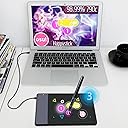
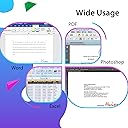
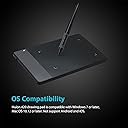
The HUION 420 OSU Tablet is a lightweight, ultra-slim digital drawing tablet featuring a 4 x 2.23 inch active area and 2048 pressure sensitivity levels. Designed for beginners and pros alike, it offers plug-and-play USB connectivity compatible with Mac OS 10.12+ and Windows 7+, supporting major creative software and remote collaboration tools. Its customizable stylus with programmable buttons enhances productivity, making it perfect for digital art, design, animation, note-taking, and even gaming like OSU! Compact and affordable, it’s the ideal tool to upgrade your creative workflow on the go.


| ASIN | B00DTPYWBG |
| Active Surface Area | 4 inches x 2.23 inches |
| Additional Features | Extra-Slim |
| Best Sellers Rank | #54 in Computer Graphics Tablets |
| Brand | HUION |
| Built-In Media | Huion 420 Graphics Tablet, Pen Nibs x 4, Removal Tool,User Manual, USB Cord for the Tablet, Wireless Pen(with 2 programmable buttons, 1 AAA battery needed) |
| Color | Black, White |
| Compatible Devices | Desktop, Laptop |
| Connectivity Technology | USB |
| Customer Reviews | 4.0 out of 5 stars 6,927 Reviews |
| Display Type | LCD |
| Global Trade Identification Number | 00520324307390 |
| Item Dimensions L x W | 4.41"L x 6.97"W |
| Item Type Name | drawing tablet |
| Item Weight | 125 g |
| Manufacturer | ShenZhen Huion Animation Technology Co., LTD |
| Mfr Part Number | 420 |
| Model Name | 420 |
| Model Number | Huion 420 |
| Native Resolution | 4000lpi |
| Number of Items | 1 |
| Operating System | Mac OS 10.12 or later, Windows 7 & above |
| Pressure Sensitivity | 2048 levels |
| Screen Size | 5.6 centimeters |
| Special Feature | Extra-Slim |
| Specific Uses For Product | Drawing, Editing, Writing |
| Target Audience | Student, Teacher, artist, beginner, desinger |
| UPC | 520324307390 760352094842 |
| Warranty Description | 1 Year warranty |
M**Y
Better than my Wacom.
I am coming from a Wacom Intuos Pro, but the drivers started having issues and the tablet became too damage to actually use. I had used that tablet for about 3 years and it is almost three times as big as this tiny thing. I am using it to play Osu! and to draw digital art, and it is wonderful in both aspects. I am a low-sensitivity player on Osu!, which means I use a lot of tablet space. I thought this tablet wouldn't be good for me because it would require me to use a smaller surface, however the 4 x 3 is quite large enough to play Osu! with! Anything bigger is unnecessary, and this is coming from a low sensitivity user. A lot of people have been complaining about the pen, but honestly it is probably my favorite part. The wacom's tip didn't give way at all and made the pen feel very stiff. This tablet works wonderfull and the tip gives way slightly, making a smooth and nice writing experience. People said it was back heavy, but the weight just made it feel more firm in my hands. I grip my pen tightly, especially while playing Osu!, so the extra weight made it feel sturdy. The pen does run off of a battery which sucks a lot, but for the price of a large pizza I can't find reason to complain. If anything the size is quite convenient, when I am forced to go somewhere I can stuff it in my laptop case and carry it with me anywhere, my Wacom would have had issues with such a thing. TLDR: It is compact, affordable, and well made. It has as good of quality as my Wacom Intuos Pro, and is 1/5 the cost. The pen is a bit hefty and it runs on a battery, but as someone who grips their pen tightly, I can say that I am happy with the heavier weight. There is no reason not to buy this, even if you just want a backup for a current tablet. As an Osu! player this is the dream beginner tablet, and as someone who plays 6* maps I can say that this thing works well in action for intermediate players too.
M**S
Love it! Not using it for drawing. Just as a mouse replacement to save wrists
Loved it, once I figured out that it's a little different from mouse actions. Then it only took a couple of hours of use to get very good with it. I thought it was defective out of the box because I didn't understand this at first: You basically hover OVER the pad to move the cursor, then touch the pad to left click. I was dragging the stylus tip across the pad, which seemed intuitive because that's how a mouse works, you move it on the table to move the cursor. But this is more like you hover the tip in the air, it kinda seems like magic. lol. you more or less move it in the air over the pad until you want to select or draw, then you touch the pad with the tip. This is a very good and inexpensive pen input stylus and pad. I'm not planning on being an artist making drawings, but did some drawings to get used to the pen. I had a pen input from a different company in the late 90s. years ago. I returned it. Back then these weren't really ready for prime time. I like this one. Still, it's alien compared to a mouse, since I've been a power computer user with a mouse daily since 1996, but I'm getting used to this. Main reasons I got it are: 1. To save wear and tear on my wrists, since you don't have to click anything to select. 2. To do midi art music (drawing notes, then moving them around until they work well. I've done that with a mouse, and it's much easier with this.) If you're an artist and have resisted these, this is cheap enough to give it a shot. And it worked out the box, didn't require much / any configuration. The one I had in the 90s did. Was 25 bucks on Amazon including paying extra for the three-year protection in case Bob the Cat eats it. Note: you basically hover above the pad to move the cursor, then touch the pad to left click. You can program the two buttons for different mouse actions too. (I programmed them to both be right click, since touching stylus is left click. If your computer doesn't have a CD drive for the included drivers, they're on the website of the manufacturer. So is a PDF of the short, good manual, which is good, because the included printed tablet is tiny type. The manual is available in a dozen languages. At least. One tip: also leave your mouse plugged in, at least while you get use to using a tablet if you're new to this. Bottom line: Great price, works well; what a time to be alive.
R**S
Wonderful! I love it!!
Wonderful and affordable!! Works like a charm! The only downside is that you aren’t able to change the sensitivity at all. Some osu players have found work-arounds that involve changing the size of a tablets play area to change the sensitivity, but you are unable to do that with this tablet. You also cannot change the sensitivity in-game either due to some kind of issue with Windows Ink? Changing the sensitivity to anything other than 1x will cause your cursor to stay glued to the upper left corner of the screen. Also, while holding the pen down while playing, you cannot left click. However, this issue is easily resolved by hitting F10 to disable mouse clicks in game. Overall, I think the sensitivity on my tablet was fine and felt no need to change it. It came in good condition and quality, it was affordable and even came with extra pen tips. I recommend for new osu players 100%
C**.
It is best for Beginner Digital Artists
Pros - The biggest pro is that it does it’s basic job functioning as a pen/not so glitchy. That’s all I ask for. - It is light and tiny, perfect to travel with. - It is cheap and affordable. - The pen is a nice size. - The platform lights up to let you know it senses something (helpful!). - Pressure sensitivity feature to give you nice, luscious brush strokes. Cons: - I don’t personally care for tablet pens needing a battery. It makes me have a little concern in the back of my head that I might not have a battery on hand when I need it. (that being said, this battery has lasted quite a while!) - I prefer larger surfaces for my hands to rest on. I draw with my whole arm, but sometimes I like to rest my hand in between thinking of how to make my next strokes. It’s just irritating when rubbing the side of my hand against an edge all the time. - Wish it had the feature that would remember where the cruiser was last and stay in one general area (kinda like a mouse) instead of zooming all over the screen as if you were drawing on a screen-tablet. It’s do-able, but also makes drawing a little more tricky/frustrating. - Will not work correctly if you have another art tablet installed to your computer. You need to uninstall that all first before installing the Huion 420 Drawing Pen Tablet or you will be very frustrated with it like I was. Overall, It takes some getting used to, but this is a good little pen tablet.
J**Y
Adjusting to it
I like that the tablet is compact. I had a little problem loading the software from the CD. But found that getting the software from the site was easier. I also didn't push the usb port all the way in (I guess my eagerness to use it distracted me from that little important step). So software and pen working, I started to use it. I would say it's kind hard to use for me because I use a mouse on my right hand and a write with my left hand and when I write I turn my paper to the side and it was hard to turn the tablet to the side and write in a straight line. I don't like that the placement of the pen on the tablet doesn't correspond to what you see on the computer screen. Kind of not liking the fact that the pen doesn't have to touch the pad to move the cursor on screen. I drew a picture with Microsoft Ink and I found it was difficult to control the pen and practiced my signature in Word and I found that writing straight across was difficult but then I had to consider that I do turn the paper sideways when I write since I'm left handed. So I had to slant the tablet in such a way that it would allow me to write straight. I tried writing my signature on Adobe acrobat pro but it was difficult because the writing strokes kept skipping and it wasn't consistent. When I purchased this tablet I just wanted something that would allow me to do some digital sketching, digital signatures, and maybe some digital painting. But the issue is control. I do like the pen but would prefer that it not have the buttons that interfere with my mouse and it moves the icons on my desktop. For 20 bucks, I expected a more simple effective tablet that's not too complicated to adjust. I want to give it a chance and I want to adjust to it. I had a wacom before (way back when) but didn't want one this time. So, it's not a bad tablet, but for me I have to get used to it first. That's why it's getting a 3 star rating.
A**R
Complete Garbage; Outdated interface and bad software/drivers
I rarely write reviews of products, but I make an exception when an item is truly terrible. I would not recommend this device to anyone. I was looking for a small, cheap, drawing pad that could be used primarily for signatures, notations, and grading course work. This item seemed to foot the bill. The item arrived with all the necessary hardware; USB cable, software disc, etc. This is where the problems began. I am extremely technologically savvy, yet this pushed my patience. If you do not do well with computers, you should stop reading this review now, because I can guarantee you will not find success with this product. The installation disc does not automatically run the software; nor is there a setup icon even on the disc's main page. There are two folders; one for Macs and one for Windows. For some insane reason, ALL product drivers are under the respective folders for ALL Huion tablets. Not just for this tablet, but all tablets. But again, I work with computers a lot, so I found the drivers I needed to install. No big deal. Yet even after I ran the setup, installed the driver, there was still no software. In fact, my computer kept warning me about the drivers, saying they were outdated and posed a security risk for my system. After each driver was installed, Huion MAKES you restart your computer, which is annoying. Worst of all, the tablet itself would not even stay on or stay connected. But again, I am a problem solver. So I went to Huion's website, found the freaking installation software, and installed it. FINALLY I could open up the software. The first thing I noticed was that the icon and interface looked like something out of a Windows 95 nightmare. When one opens up the application, it immediately closes. It does not run the tablet. It does not run the interface. It simply closes. Subsequent attempts to open the interface will garner you a simplistic error message: "Application is already open," which is in fact, false. Yet something is running in the background, because to give it another go, you will have to open up Task Manager, and end THREE separate processes related to the tablet functions. It was at this point I said screw it; even if I could get the software to work, the cheapness of the interface really turns me off the product. Even for $25, I expected a lot better product. The pen is also cheaply constructed, and I don't feel either product would last long. I highly, highly recommend you try a different product, even if you spend a little more.
A**M
Works pretty well
This is my first tablet and it's super easy to use and install. It comes with extra nibs but it does *not* comes with batteries (for the pen). You'll need to buy those separately. After a few months of drawing use, I do notice some scratches on the surface of the tablet, but that's to be expected because it's made out of a very light plastic material. One thing that I do not like, however, is that sometimes (not often) in the beginning of a stroke the pressure glitches out and the beginning of the stroke is just a black dot. I've attached a picture of what it looks like. To be fair, this doesn't happen *that* often and if you just make a few strokes it'll stop. Overall, it's a pretty decent tablet. I use it to draw and it's improved my experience by quite a bit. I think its a great deal for its price. So if you want a cheap tablet that works reasonably well, I think this is a good buy.
A**H
My Most Convenient Tablet
I have a few drawing tablets(Gaomon PD1161 is a tablet I have that I've used a lot besides this one) and honestly I like this one the best as of now. It's small enough to keep in my smaller desk drawer and it only has one cord, making it really easy to manage and convenient to just plug in and use right away. If you use a lot of shortcuts(more than two) when drawing then you may benefit more from saving for a tablet with many hotkeys, otherwise this is great. My pen doesn't twist closed fully, but I think that's because it's a little old(June 2022 is when I got it) as I don't remember having this problem before. Either way, it doesn't cause any problems. The pen takes one AAA battery. Make sure you have the driver installed and open it before using the tablet. You can download the driver on the Huion download page(Click Pen Tablet, select "others" for product series, and select "Huion 420" for product name). The driver doesn't need you to have the application fully open, so if you open it and it didn't pop up the screen then it opened as a background process and you're good to draw. If you need the screen open to change the shortcuts, then just open it again(as seen in the video). If you're unsure if it's open, look at task manager and it should be in the background processes under TabletDriver. It's a good tablet by my standards but the ones who I think would benefit the most are beginners who haven't used other tablets.
S**K
Five Stars
Good product
E**R
Gutes Tablett für Anfänger!
Ein ganz OKAY Grafiktablett! Der Stift vom Tablett ist sehr leicht... wenn man keine Batterie ( AAA ) im Stift ist! Macht man eine AAA - Batterie rein, ist der Stift sehr schwer, aber mach gewöhnt sich nach ner Zeit. Außerdem ist die spitze vom Stift ist sehr Spitz heißt, das Tablett zerkratz sehr Schnell! Das Tablett hingegen ist klein, und perfekt für spiele wie Zum beispiel: "osu!". Es ist sehr gut für Anfänger, da der Preis sehr Niedrig und das Tablett auch eigt. nicht schlecht ist! Für erfahrene Tablett Nutzer, würde ich es nicht empfehlen, da würde ich ein Tablett für mind. 50-100€ suchen, ein gutes Beispiel ist das "Wacom Intuos Art Small Black Grafik-Tablett" für 100€! Für Anfänger würde ich das Tablett empfehlen, da es sehr einfach gehalten ist, nicht schwer zu installieren und sehr billig ist! für Anfänger nur zu empfehlen!
D**H
Ottimo acquisto!
Ho acquistato questo prodotto per fare un regalo al mio fidanzato. La versione che ho scelto è stata la 420, per ora non ha avuto modo di provarla per bene ma per quel poco che ha visto sembra un ottimo prodotto. Sicuramente molto adatta per coloro che sono ancora alle prime armi con le tavolette grafiche perché dà buone possibilità per esercitarsi. La scatola è composta dalla tavoletta grafica, dalla penna (senza batteria), da varie punte sostitutive per la penna, dal cd per l'installazione e dal cavo per collegarla al computer (perché non è possibile utilizzarla in modalità wireless). La penna ha un'ottima reattività sul pad e scorre bene come una penna sul foglio. Spedizioni velocissime ma purtroppo la scatola è arrivata con gli angoli tutti rovinati e non era proprio il massimo dell'estetica per fare un regalo ma per il resto il prodotto è molto buono.
J**N
Una tableta sencilla para firmas y jugar osu
Una buena tableta barata llevo 1 semana probandola y todo va de maravilla precio calidad muy recomendable Sirve para osu, para diseño gráfico si apenas vas empezando (si ya tienes experiencia mejor busca otra tableta mejor) todo muy bien con la tableta, tal vez el único pero es la pluma que necesita pilas triple A y que la punta si es algo frágil pero vamos este tipo de productos siempre tienes que cuidarlos, Sin peros ni quejas lapson México ya había comprando anterior mente con ellos así que tenia la confianza que llegaría mi producto
J**R
4 A Drawing Tablet, It's Really Small (this can be good)
Want this for school / work to use with my laptop, it's perfect because it's small enough to fit into the laptop bag. The larger a tablet the more it costs, so I bought this to determine really what kind of art I was able to produce on tiny drawing pad. My next smallest to this is 10x11 and I would have to say there is a big difference in terms of interesting strokes you can get on a smaller tablet the variation is limited. I'm going to say it was tricky to learn as you are basically drawing on a notepad / stickynotes, but that doesn't mean it can't produce good results. I used this tablet to Ink and Colour a drawing I'll include, and I can say I'm happy with the product. My hand was a bit sore I may have been adjusting (or drawing too long), but my only real con is that it doesn't leave much room for long detailed strokes. Pros - Easy Installation - Drivers and Pen Pressure Worked Quickly - Small And Portable - Produce Quality Artwork for low-cost Dislike - Limited Line Variation - Tricky to Learn
Trustpilot
1 month ago
1 month ago